# WhatsApp Business Automated Messages for Appointment Businesses: Setup, Examples and Limits
> Canonical source: [https://citaflow.com/en/blog/whatsapp-business-automated-messages/](https://citaflow.com/en/blog/whatsapp-business-automated-messages/)
Set up WhatsApp Business greeting messages, away messages and quick replies step by step, with examples for every booking stage and common fixes.
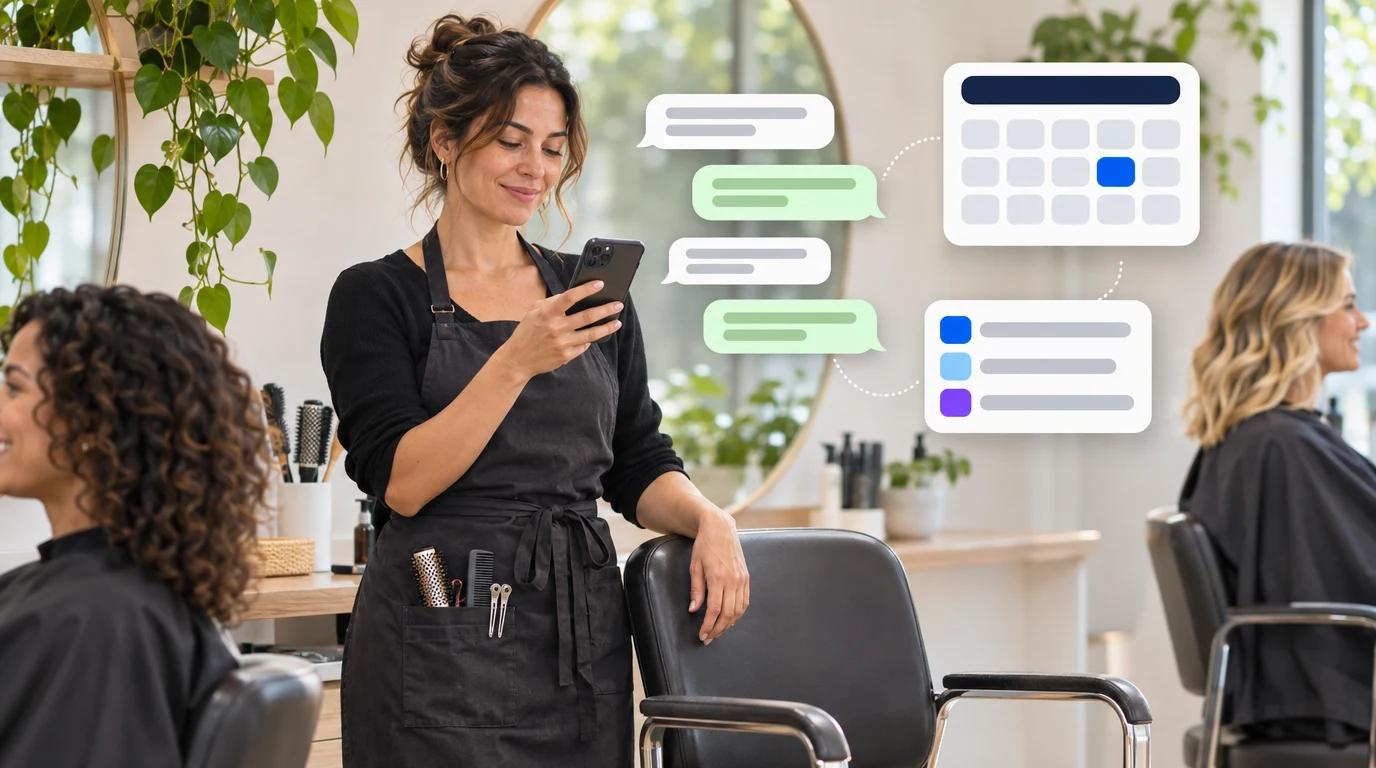
The free WhatsApp Business app has two **automated messages**: the greeting message and the away message. It also has quick replies, which do not send on their own but save you from typing the same answer every day. You turn all three on from your phone, in the **Tools** tab. Regular WhatsApp does not have them.
Below is how to set up each one, what to write at every stage of a booking, and why they sometimes fail to send. At the end you will see what to do about the messages the app does not send on its own, which is most of them.
## How to set up automated messages in WhatsApp Business
Before you turn anything on, fill in your opening hours in your business profile. You need them for the away message to send only when you are closed.
Menu names come from WhatsApp's official Help Center, checked on November 21, 2026. They can vary slightly between app versions.
### Greeting message
It is sent automatically when a customer messages you for the first time, or after 14 days with no activity in that chat. According to [WhatsApp's help page on greeting messages](https://faq.whatsapp.com/501866148528310/?locale=en_US):
1. In the **Tools** tab, tap **Greeting message**.
2. Turn on **Send greeting message**.
3. Tap **Greeting message** to edit your text, then tap **OK**.
4. Under **Recipients**, choose who gets it: everyone, everyone not in your address book, everyone except some contacts, or only the contacts you pick.
5. Tap **Save**.
### Away message
It is sent when you cannot reply: outside your hours, on vacation, or whenever you leave it on. These are the steps from [WhatsApp's help page on away messages](https://faq.whatsapp.com/2565868990219715/?locale=en_US):
1. In the **Tools** tab, tap **Away message**.
2. Turn on **Send away message**, tap the message to edit it, then tap **OK**.
3. Under **Schedule**, choose when it is sent: **Always send**, **Custom schedule** or **Outside of business hours**.
4. Choose your **Recipients** and tap **Save**.
The "Outside of business hours" option is only available if you have set your business hours in your business profile.
### Quick replies
These are not automatic: you pick them and send them yourself. They let you answer everyday questions in two taps, and you can save up to 50. Here is how to create one, according to [WhatsApp's help page on quick replies](https://faq.whatsapp.com/1791149784551042/?locale=en_US):
1. In the **Tools** tab, tap **Quick replies**, then the add icon.
2. Tap **Message** and write your text.
3. Tap **Shortcut** and give it a short one, such as "book" or "prices".
4. Tap **Save**.
5. In any chat, type "/" and pick the reply. You can edit it before sending.
If you use regular WhatsApp: it has no automated messages. Some third-party apps promise to add them, but WhatsApp's help page on unofficial apps warns that using them can get your account banned, temporarily or permanently. WhatsApp Business is free and you can move your existing number to it.
| Booking stage | Message to use | Where you set it up |
|---|---|---|
| First inquiry | Short greeting that asks which service and when | Tools → Greeting message |
| Time or price question | Quick reply with your booking link | Tools → Quick replies (you send it with "/") |
| Confirmation | Summary with day, time, service and address | Quick reply, or CitaFlow®, which sends it for you |
| Reminder | Day and time, and how to confirm or change | By hand, or CitaFlow, which sends it for you |
| Change or cancellation | Reply with your next openings | By hand, or the CitaFlow assistant |
| After the visit | Thank-you with your review link | Quick reply at the end of the day |
| After hours | Away message with the time you will reply | Tools → Away message |
Copy the examples and swap the parts in brackets.
### First inquiry
The first message confirms they reached the right place and asks only for what you need to book them.
**Hair salon or barbershop**
> Hi, thanks for messaging [Business name]. To book you faster, tell us which service you want and which days suit you. You can also book here: [booking link]
**Auto repair shop**
> Hi, you have reached [Business name]. Tell us your car model, what is wrong or which service it needs, and the day you would like to bring it in. We reply during our opening hours: [hours].
### Time or price question
Save these with a short shortcut, such as "/book" or "/prices", so you can answer between clients.
**Beauty salon or nail salon**
> Here are the openings and prices at [Business name]: [booking link]. If you would rather book here, tell me which treatment you want and whether mornings or afternoons suit you better.
**Tattoo studio or law firm**
> At [Business name] we work by appointment, during [hours]. You can book at [booking link] or tell us here what you need.
### Booking confirmation
The free app does not confirm anything by itself. Keep a quick reply ready to send as soon as you write the booking down. With CitaFlow you do not have to remember: the confirmation reaches the client on its own as soon as the appointment is booked.
**Restaurant**
> Table confirmed at [Business name] for [day] at [time], for [number of people]. We are at [address]. If the number of guests changes, let us know here.
**Massage studio or spa**
> Your appointment at [Business name] is confirmed for [day] at [time]. Please arrive a few minutes early so we can start on time. Directions: [map link]
### Reminder before the appointment
The free app does not send reminders tied to the date of each booking either: you have to send them by hand, one by one. The [appointment reminder templates](/en/tools/reminder-generator/) give you the wording. If you would rather not send them yourself, CitaFlow sends the reminder for each appointment and the client confirms with one tap.
**Hair salon or barbershop**
> Hi [Client name]. A reminder of your appointment at [Business name] tomorrow, [day], at [time]. If something comes up, let us know as soon as you can so we can free the slot.
**Gym or studio**
> Hi [Client name]. You have a class booked at [Business name] tomorrow, [day], at [time]. If you cannot make it, change your time here: [booking link]
### Change or cancellation
A fast reply to a cancellation gives you time to offer that opening to someone else. The [CitaFlow assistant](/en/chat-ai/) changes or cancels the appointment in the same conversation, even while you are with a client. If you have not written your terms yet, the [cancellation policy template](/en/tools/cancellation-policy-generator/) drafts them for you.
**Beauty salon or spa**
> No problem, we have canceled your appointment on [day] at [time] at [Business name]. You can pick another opening at [booking link] or tell us which day you prefer.
**Auto repair shop**
> Got it, we have canceled your booking on [day] at [Business name]. Our next openings are [day and time options]. Tell us which one to hold for you.
### After the visit
A message the same day is the moment to say thanks and ask for a review while the visit is fresh.
**Tattoo studio**
> Thanks for coming to [Business name] today, [Client name]. Here are your aftercare instructions: [link or notes]. If you would like to share how it went, it helps us a lot: [review link]
**Restaurant**
> Thanks for coming to [Business name] today. If you enjoyed it, you can leave us a review here: [review link]. See you soon.
### After hours
Say when you will actually reply, and give people a way to move forward in the meantime. There are more versions in the [tool with 12 away message examples](/en/tools/whatsapp-business-messages/).
**Hair salon or beauty salon**
> Hi, we are with clients or outside our opening hours right now ([hours]). To book without waiting, pick your slot here: [booking link]. For anything else, we will reply when we open.
**Law firm**
> Thank you for contacting [Business name]. Our office hours are [hours]. We have received your message and will reply on the next business day. To request an appointment: [booking link]
Of these seven messages, the free app only sends two on its own. With CitaFlow, an assistant answers your WhatsApp and leaves the appointment booked while you work.
Try it free for 7 days
No card needed. Want to see it first? Message the demo.
Test them before you rely on them. Message yourself from another number and check on the screen that the full text shows and the link is not cut off. To test the greeting message, use a number that has not messaged you in the last 14 days.
| What you need | Free WhatsApp Business app | CitaFlow assistant |
|---|---|---|
| Greet and reply after hours | Yes, with the same text for everyone | Yes |
| Answer questions about services | No | Yes, with your business details |
| Check openings and book | No | Yes: books, changes and cancels |
| Confirm and remind each appointment | Only by hand | Yes, for every appointment |
That is the gap CitaFlow covers. Its [AI assistant](/en/chat-ai/) answers on WhatsApp, Instagram, Messenger, Telegram and your website chat at any hour. It answers questions and books, changes and cancels appointments directly in your calendar.
You can keep using your WhatsApp Business app on your phone and see what the assistant replies. CitaFlow also sends the confirmation and the reminder for each appointment on its own, and the client confirms with one tap. And you get an [online booking page](/en/online-booking/) with your own link, which is the one to put in every message above. No commission per booking.
### How you get started
It is not one more program to learn. Instead of studying screens, you answer a few questions:
1. **Create your trial account.** It is free for 7 days and asks for no card.
2. **Answer a few questions about your business**, or paste your website or your Google listing, and the account is adapted to how you work: your services and your hours.
3. **Turn on the channels your clients write to**, starting with WhatsApp, and the assistant starts answering and booking.
Try it with your own business. Create the account, answer a few questions and watch your assistant answer and book.
Create my trial account
Free for 7 days, no card needed. Want to see it first? Message the assistant demo.