
Step-by-step connection process
Start the connection from CitaFlow
In your dashboard go to Chatbot > Channels > WhatsApp, click «Connect Account» and choose «Connect existing WhatsApp Business App». Type your app's number in international format and click «Continue».
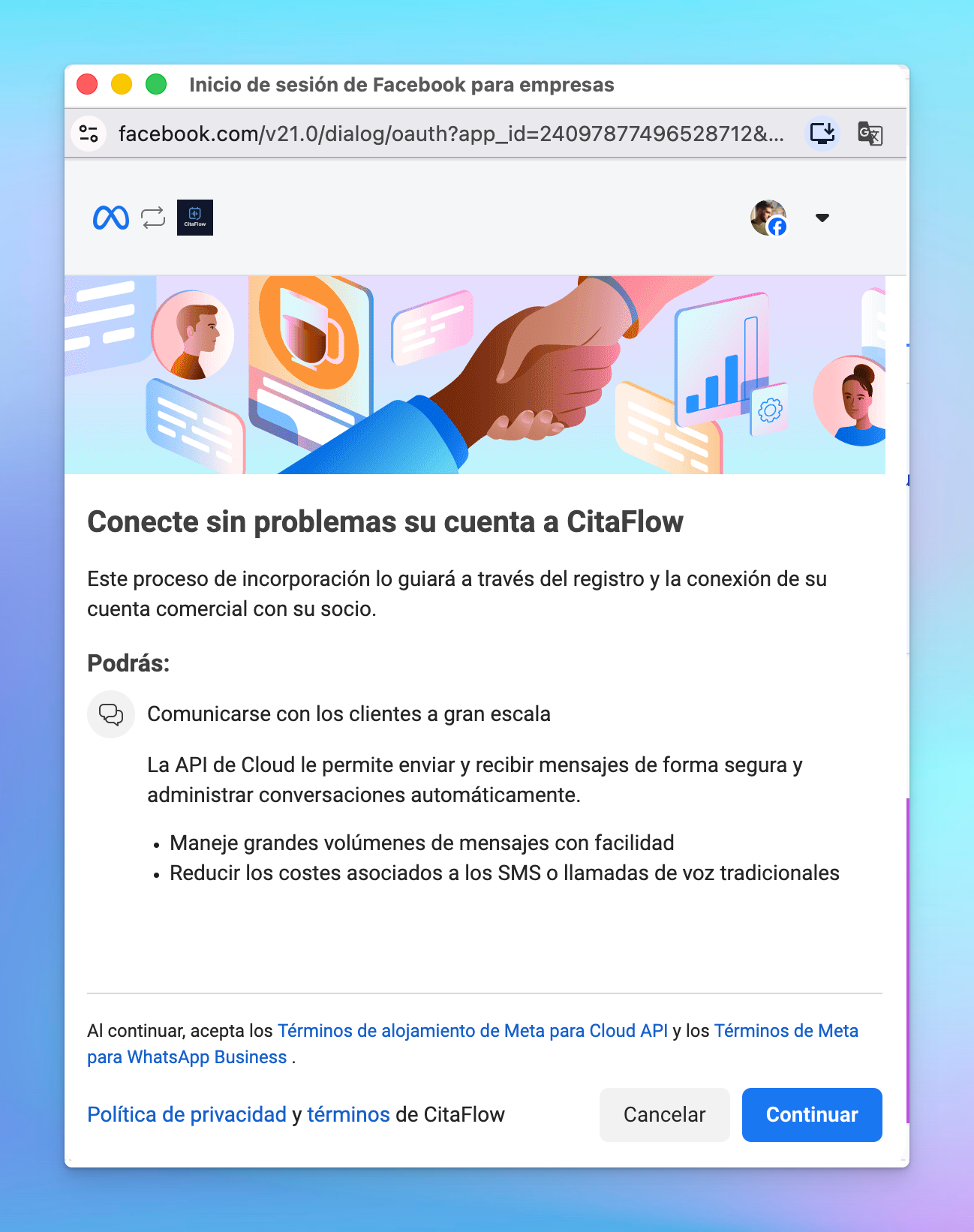
Meta's window opens. Review the introduction and click «Continue» to accept Meta's terms.
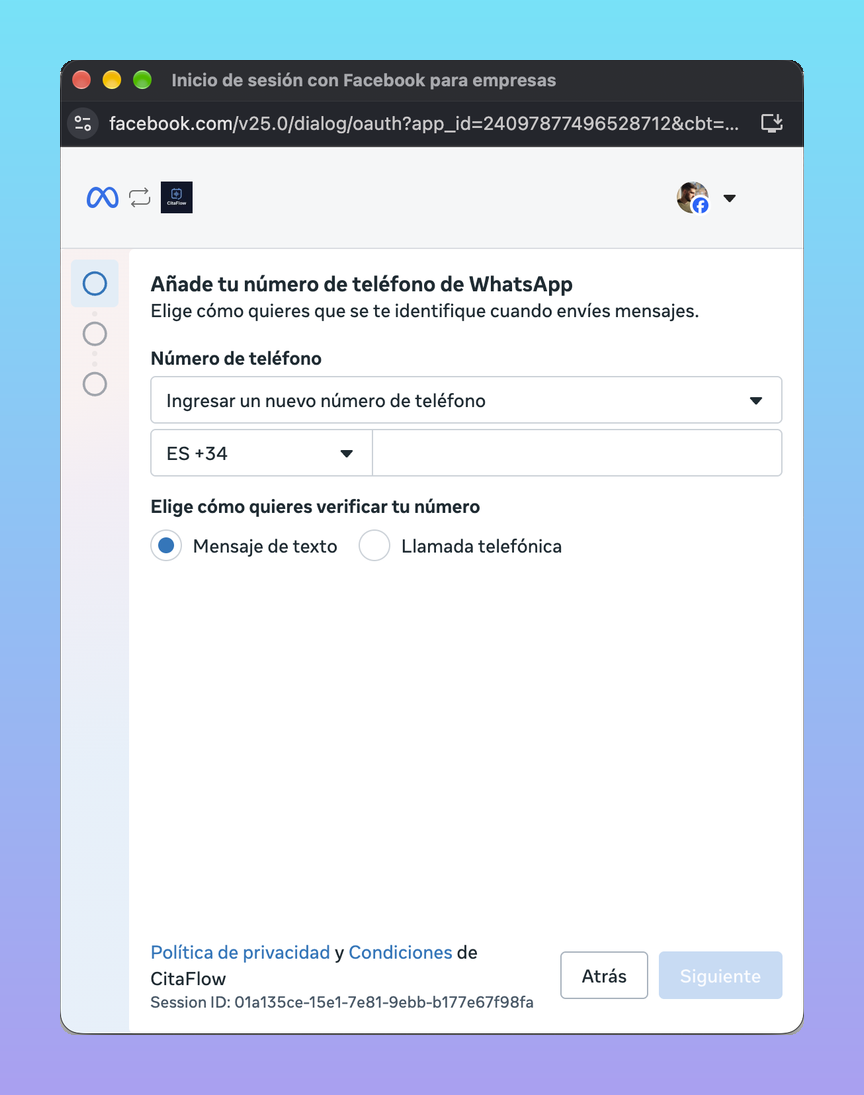
Enter your app's number (even though it says "new")
On the screen to add your WhatsApp phone number, keep the option to enter a new phone number selected, choose your country code and type the number you use in the WhatsApp Business app. Click «Next».
Meta no longer shows a separate option to connect the app: it recognises on its own that the number is on WhatsApp Business and switches to this mode.
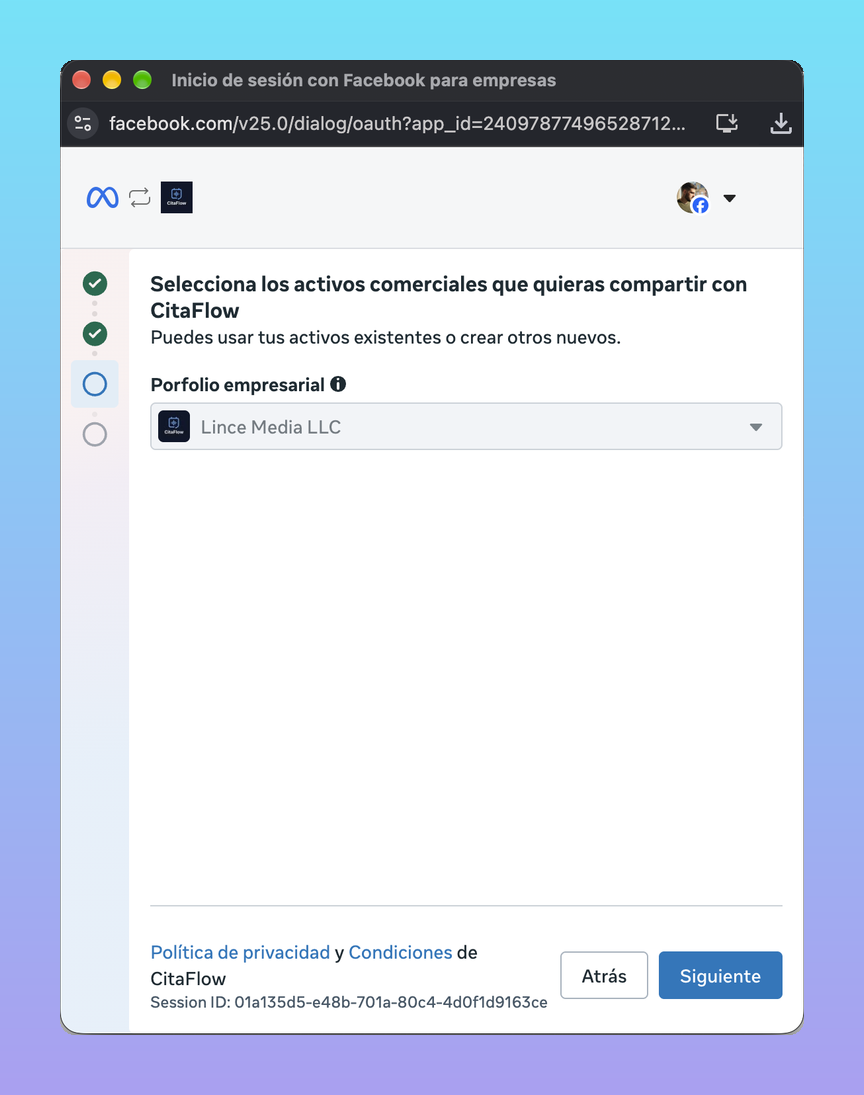
Check your profile and pick your business portfolio
Meta shows your WhatsApp Business account profile so you can check it's yours. Then, under Business portfolio, choose your business's portfolio and click «Next».
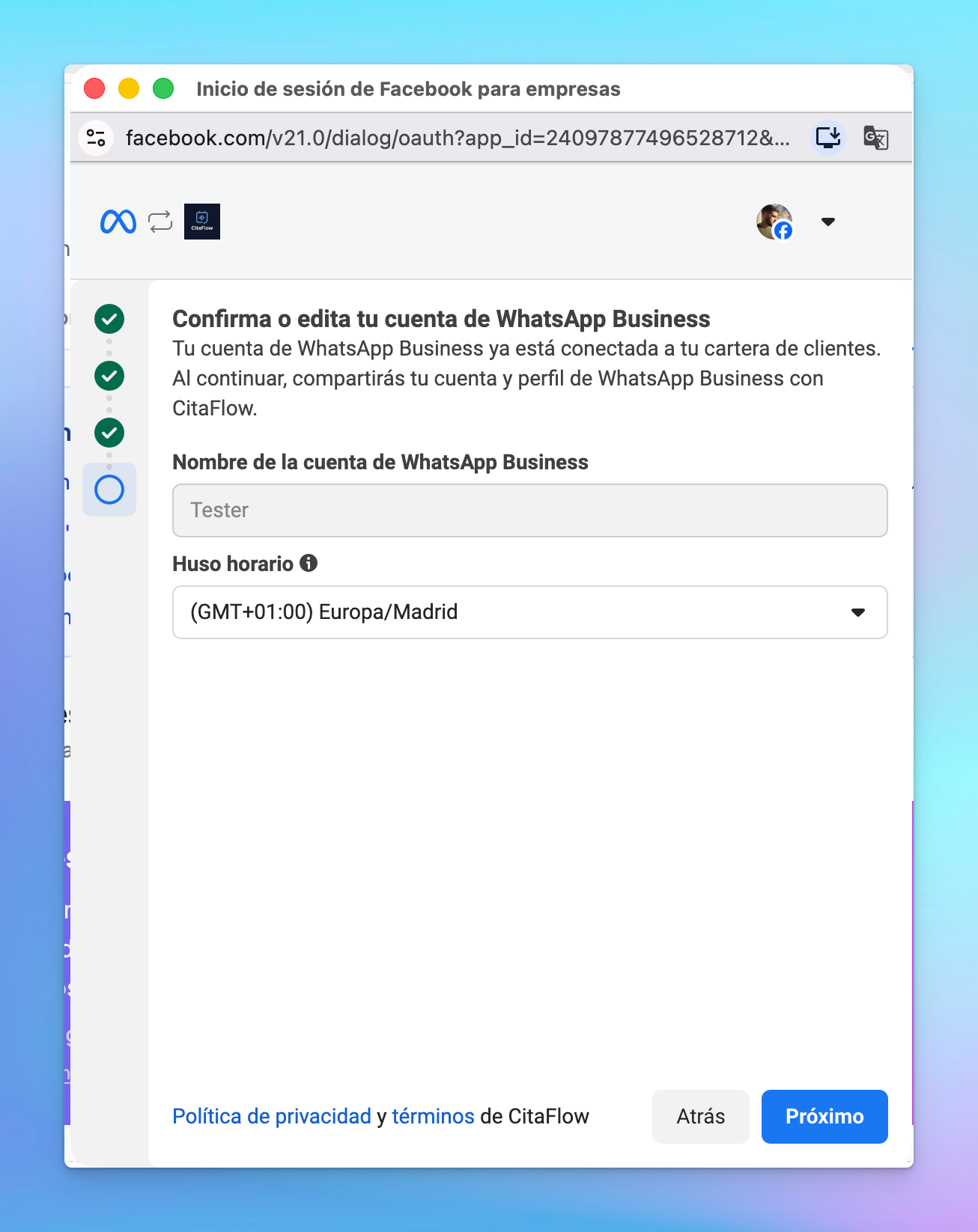
Confirm your account details
Review the WhatsApp Business account name and the timezone. Make sure the timezone is your business's so appointments are handled correctly, then continue to the end.
Confirm on your phone
When Meta tells you to, open the WhatsApp Business app on your phone. You will receive a message from the official Facebook Business account. Follow these steps in the app:
- Tap «Connect» in the received message
- Tap «Connect to Business Platform»
- Tap «Confirm» to share chat history (optional)
- Paste the verification code shown on screen
Connection complete
Once verified, your number will appear as «Connected» in your CitaFlow dashboard. CitaFlow will start syncing your contacts and, if you allowed it, your message history.
To check your number's status, open Meta WhatsApp Manager:
What gets synchronised?
This table shows which features are synchronised between the WhatsApp Business app and CitaFlow after enabling this connection:
| Feature | Synchronised | Notes |
|---|---|---|
| Individual chats (1:1) | Yes | Last 6 months of history |
| Contacts | Yes | All contacts with WhatsApp |
| New messages (App → API) | Yes | Reflected on both platforms |
| Group chats | No | Not synchronised |
| Disappearing messages | No | Disabled after connecting |
| View-once messages | No | Disabled after connecting |
| Voice/video calls | No | Only available in the app |
| Catalogue, orders, statuses | No | Only available in the app |
| Broadcast lists | No | Disabled (read-only) |
Important information
Please note
- Contact and history synchronisation must be completed within the first 24 hours after connection. If the window expires, you will need to disconnect and reconnect.
- Messages sent from the app remain free. Only messages sent via the CitaFlow API incur a cost.
- Maximum throughput with this connection mode is 20 messages per second.
- To disconnect, go to WhatsApp Business App > Settings > Account > Business Platform > Disconnect account.
Need help?
If you have problems during the connection process, we are here to help: