
How Can I Integrate an Appointment Scheduling System Into My Website?
How to integrate an appointment scheduling system into your website, step by step: a hair salon example and how to take online bookings with CitaFlow.
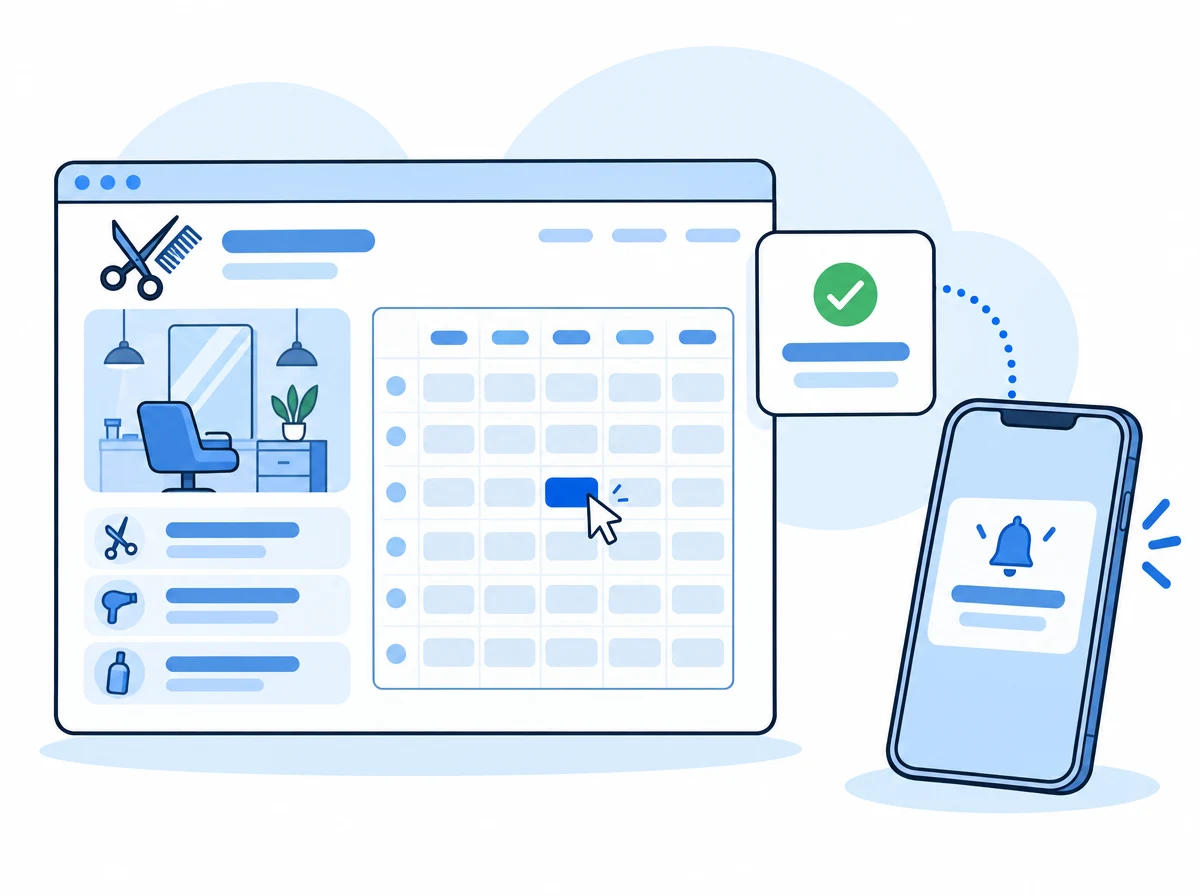
If you’ve landed here, chances are you already have a website and you’re still booking appointments by phone or WhatsApp. You know what that costs you, so let’s go straight to the answer.
To integrate an appointment scheduling system into your website you have two options: paste a booking widget into the site you already have, or link from it to a booking page of your own. Either way, your clients only see the times that are actually free, book on their own, and the appointment lands straight in your calendar. With CitaFlow you can do either one without knowing how to code: you set up your hours and services, copy a snippet of code and paste it into your website.
First, let’s look at the problem with a real-life example. Then, the exact step-by-step to switch it on.
The problem: a nice website that doesn’t take bookings
Picture Lucía’s hair salon. Two chairs, one colleague and a website someone built for her a couple of years ago: photos of the salon, the list of services, the opening hours and, right at the bottom, a button that says “Book via WhatsApp”.
The website is fine. The trouble starts after the click:
- The phone rings while Lucía’s hands are busy with a color job, and she can’t pick up.
- WhatsApp messages come in at eleven at night and get answered the next morning, when sometimes the client has already gone somewhere else.
- Answering “do you have anything on Thursday?” means checking the paper diary, suggesting a time, waiting, suggesting another one…
- Every now and then two appointments end up at the same time: one in the diary and one on the phone.
- And some clients, without a reminder, simply forget to show up.
None of this is new to you. If you’re looking for a way to integrate a booking system into your website, it’s because you live it every week. The good news is that the fix isn’t rebuilding your website. It’s adding the piece it’s missing: a calendar that takes bookings on its own.
If you want to put a number on what no-shows cost you, try the no-show calculator with your own figures.
What an appointment scheduling system for your website is (and what it has to do)
An appointment scheduling system is an online booking calendar connected to your website: the client sees the free slots, picks one and the appointment is saved without you lifting a finger. You see it in your dashboard and the client gets the confirmation right away.
For it to really take work off your plate, it has to do five things:
- Show only times that are really free, based on your hours, who does each service and how long it takes.
- Confirm every booking on its own, with the right details.
- Remind the client before the day comes.
- Let clients reschedule or cancel without having to call you.
- Use one single calendar for everything: the website, the phone, WhatsApp and the appointments you add by hand. That way there are no double bookings.
If a tool falls short on any of these, you’ll end up doing by hand exactly what you wanted to stop doing. If you’re comparing options for a hair salon, there are more criteria in how to choose hair salon booking software.
Two ways to add online booking to your website
There are two ways to put an online booking system on your website, and you can use both at once:
| Widget inside your website | Your own booking page | |
|---|---|---|
| What it is | A booking calendar shown inside your website | A separate page with your services, your hours and the book button |
| How you install it | Copy a snippet of code and paste it into your website | Switch it on in the dashboard and link to it from a button |
| What the client does | Books without leaving your website | Goes to your booking page and books there |
| Best if… | Your website lets you paste HTML code (WordPress, Wix, a custom-built site…) | Your website builder doesn’t allow code, or you don’t have a website yet |
In CitaFlow both options are included in every plan and share the same calendar. In Lucía’s case, the widget makes the most sense: her website already exists and she likes it, it just needs people to be able to book from it. And the booking page also comes in handy for her Instagram and Google link.
How to integrate CitaFlow into your website, step by step
This is the full walkthrough, in the order that works. Pasting the code takes minutes; what takes the most time is getting your hours and services right, and you only do that once.
Step 1: create your account and follow the setup wizard
Go to CitaFlow and create your account. The trial lasts 7 days, it’s free and it doesn’t ask for a card.
As soon as you log in, a wizard asks you for the basics (Business Information, Hours, Services & Resources, Notifications and Website) and lets you try the AI along the way. Take your time with it, because almost everything that comes next is built from here. If you already have a website, the wizard can also show you the widget code; if it doesn’t, no problem, because you’ll always find it in the dashboard (step 5).
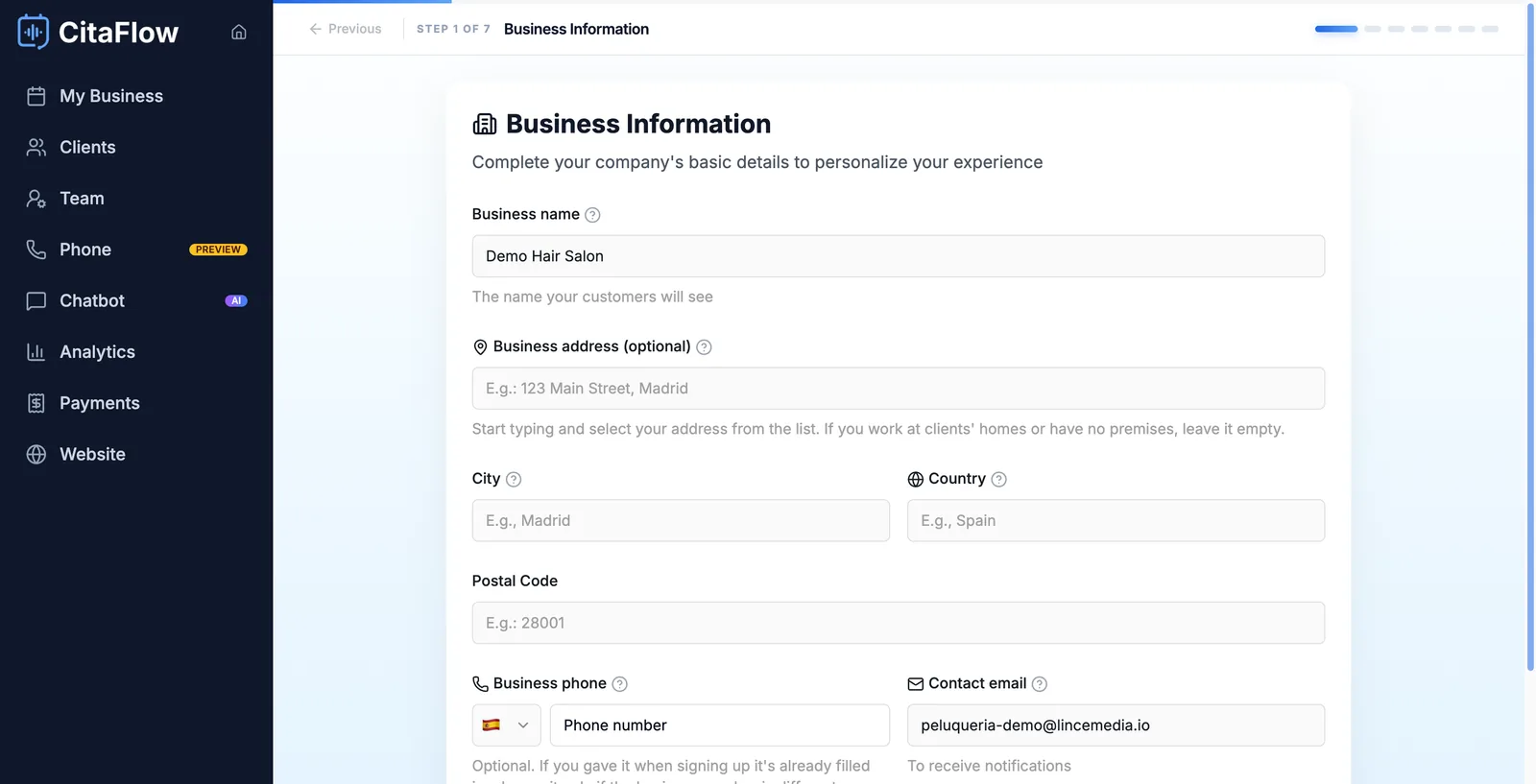
Step 2: get your opening hours right
In My Business → Hours you decide when people can book. If a time isn’t open here, it won’t show up as a free slot on your website.
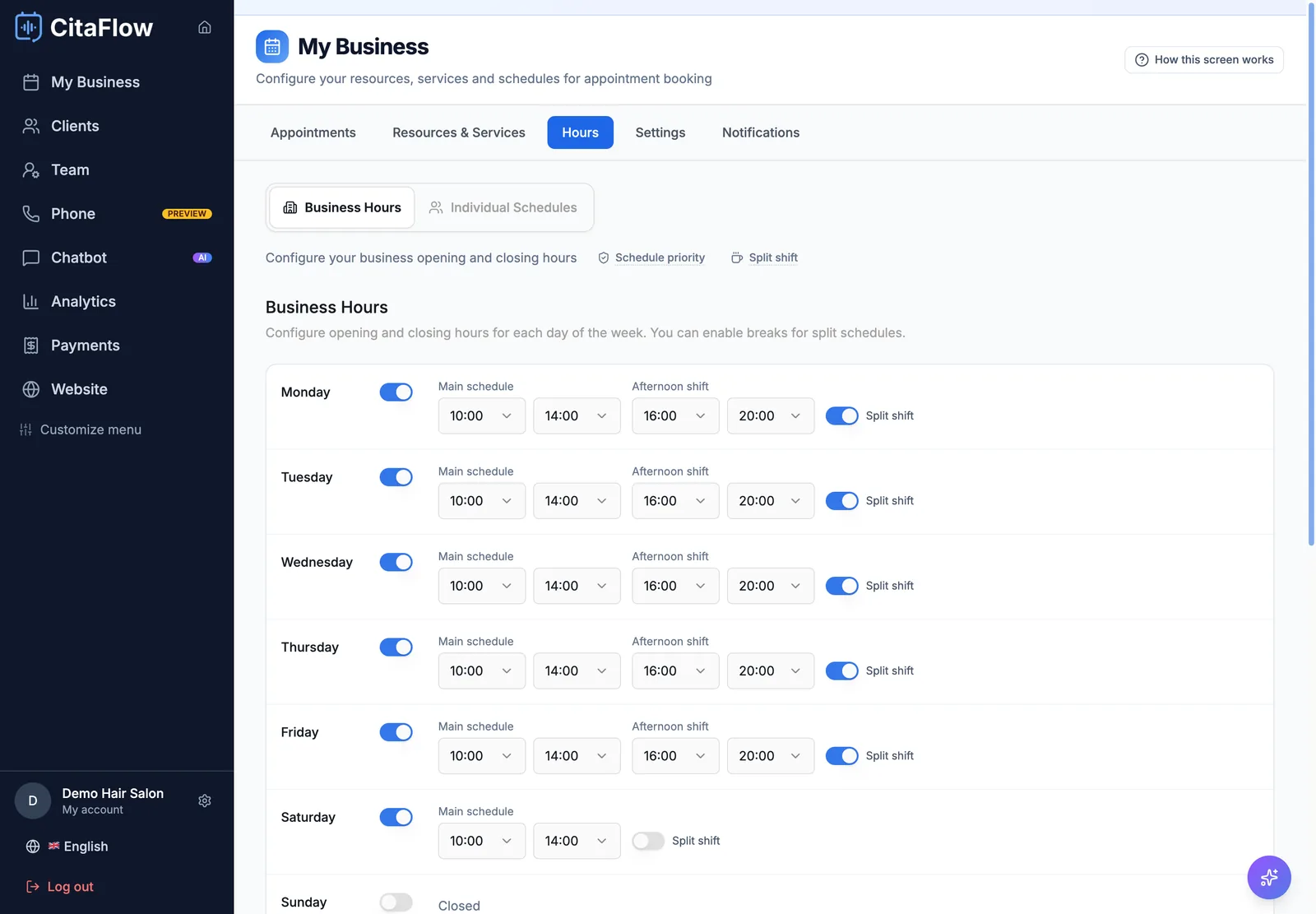
What a hair salon usually needs:
- Split shift, if you close at midday: you add an afternoon shift and no appointments can fall in between.
- Schedule Exceptions for public holidays and vacations: you mark the date as closed and nobody can book that day.
- Individual Schedules, if each person on your team works their own shift. If Lucía’s colleague only works afternoons, her calendar will only offer afternoons.
There’s more detail in the business hours guide.
Step 3: create your services and say who does each one
My Business → Resources & Services is where your catalog lives. For each service you enter the name, the duration (the With client field), the price and who performs it.
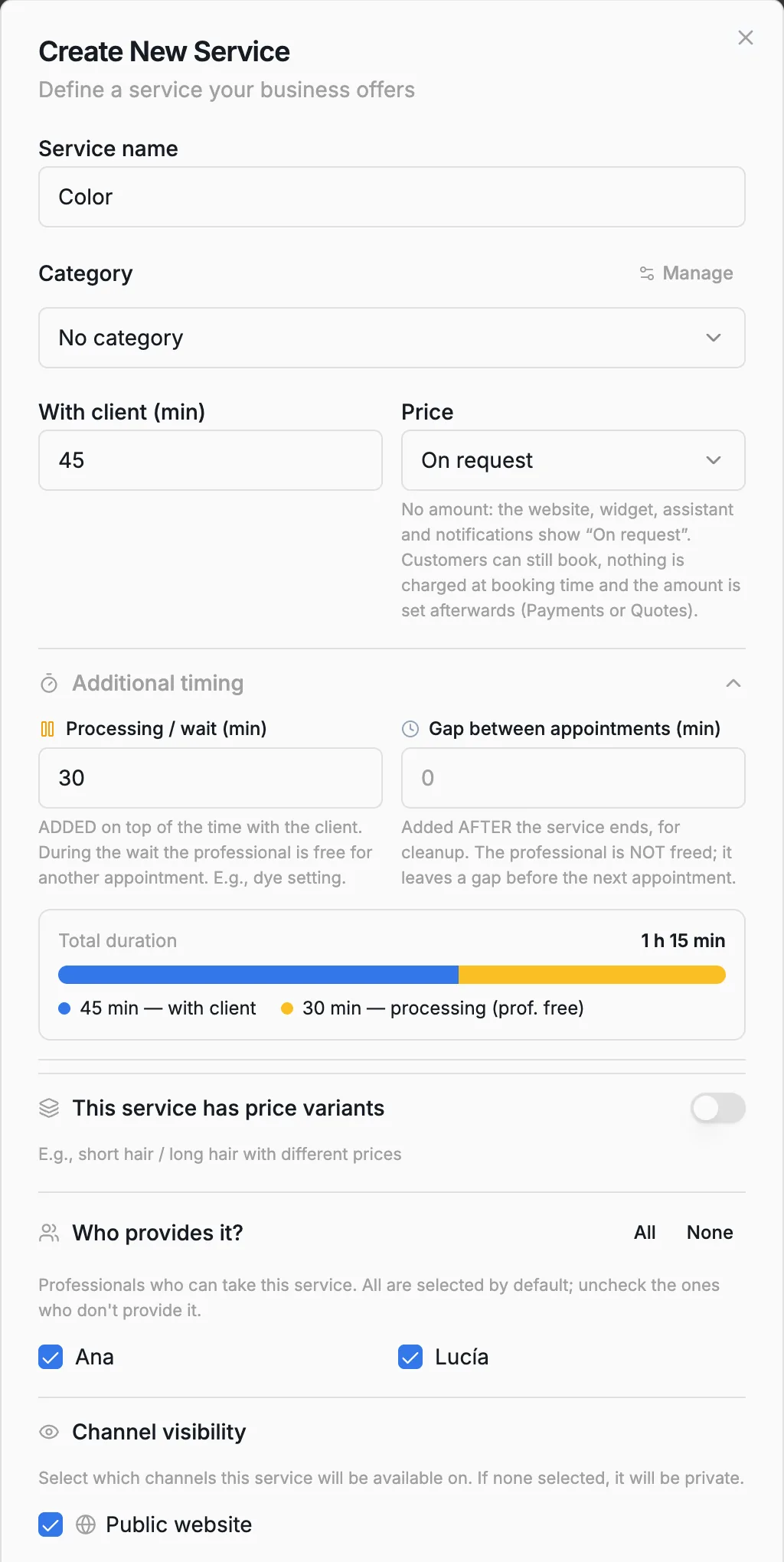
Three settings that make a real difference in a hair salon:
- Processing / wait: for example, the time a color needs to develop. It’s added to the appointment, but the stylist is free to see another client in the meantime.
- Price variants: if the same service costs different amounts depending on hair length, you don’t need to create it twice.
- Channel visibility: tick Public website on every service you want people to be able to book from your website.
Watch out for this: a service with no professional assigned can’t be booked online. If you see the red No resource label next to a service, assign someone to it. More help in the services guide.
Step 4: publish your booking page
Go to Website → General and check your Business Name and City: they’re used to create your address, something like web.citaflow.com/yourbusiness. Then turn on the Active switch.
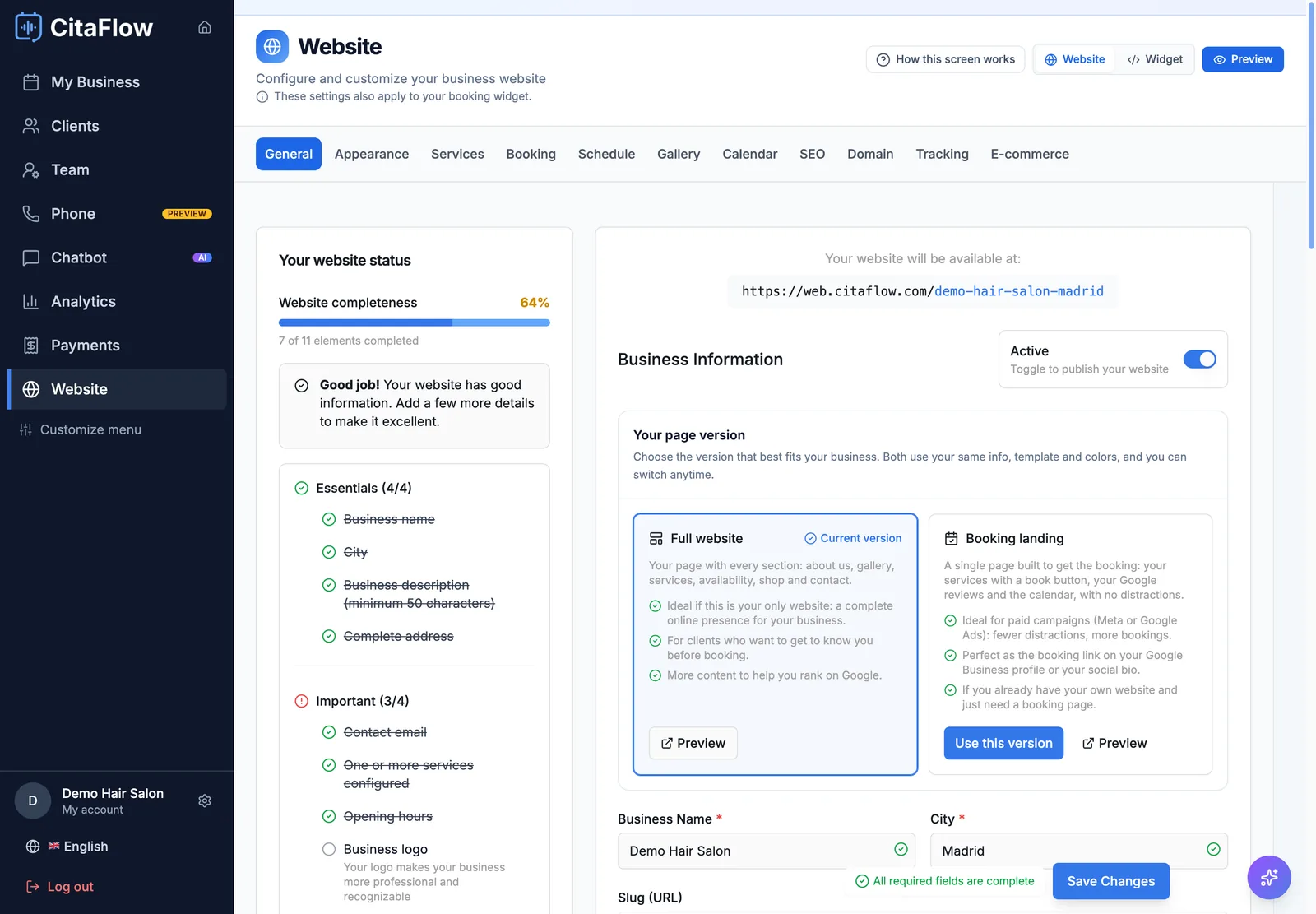
This step matters even if you’re only going to use the widget. If your booking page isn’t published, the widget shows up empty on your website, with no services or times, and there’s no warning to tell you. It’s the most common slip, so best to get it done now.
If the switch won’t turn on, the Your website status panel tells you what’s missing. Click each item and it takes you straight to where you fix it.
Step 5: turn on the widget and copy the code
Now go to Website → Widget. If you don’t see that tab, use the switch at the top of the screen (What you’re configuring) and pick Widget.
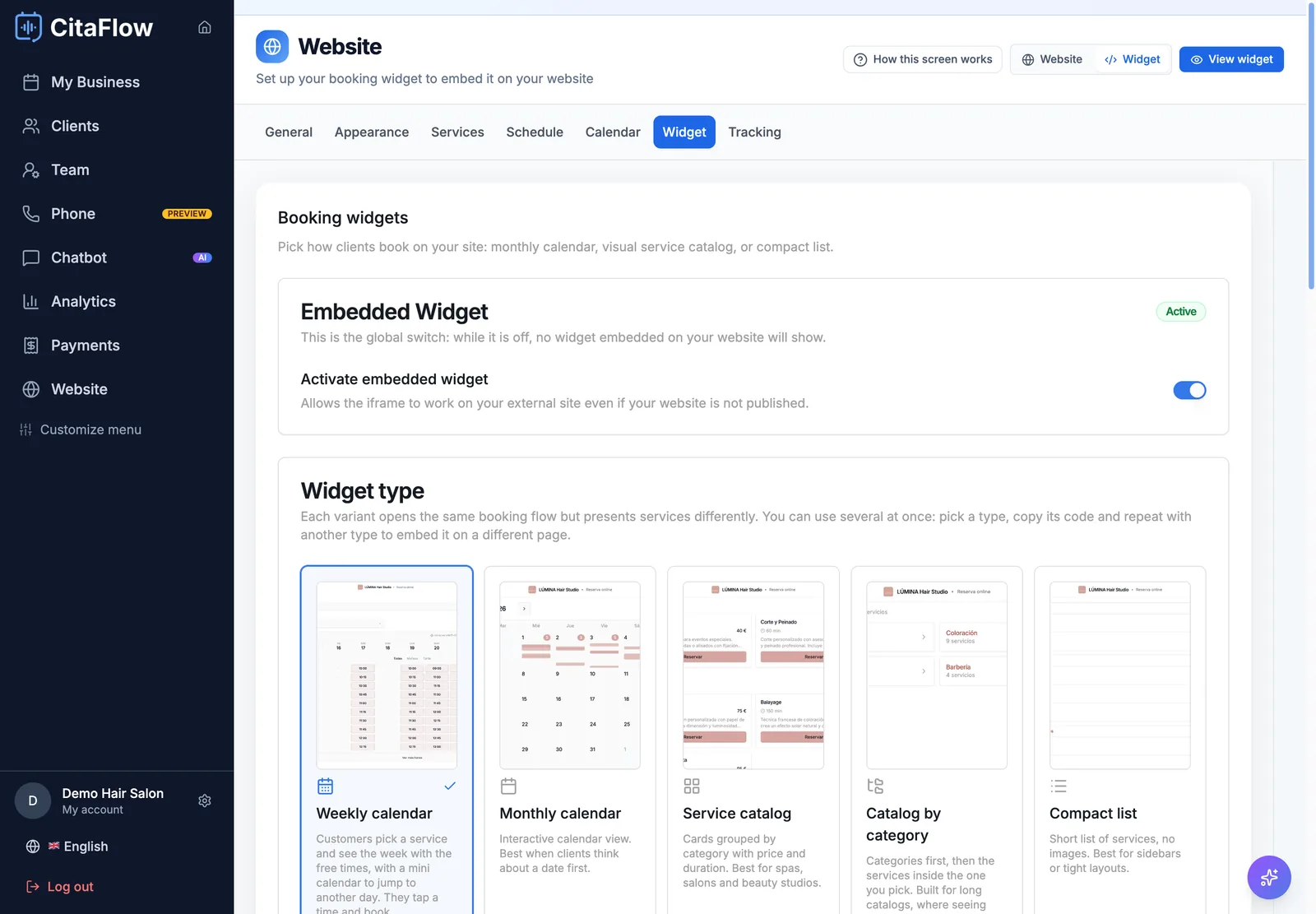
- Turn on Activate embedded widget.
- Choose the Widget type:
- Weekly calendar (the default): the client picks the service and sees the week with the free times. For a hair salon it’s usually the best choice.
- Monthly calendar: for when your clients think of a specific day first.
- Service catalog or Catalog by category: cards with price and duration, handy if you have lots of services.
- Compact list: for a sidebar or a small space.
- In Widget Configuration, leave the size on Responsive so it adapts to mobile, and increase the height if it looks too short.
- Copy the whole Iframe code with the copy button in the corner.
You don’t need to touch the colors here: the widget uses the ones from Website → Appearance, and if you change them there, they update on your website automatically.
Step 6: paste the code into your website
Paste the whole code (the iframe and the script that comes with it) wherever on your website you want the calendar to appear. The most practical setup is a page of its own called “Book now” or “Book an appointment”, linked from the menu, plus a button on the home page that leads to it.
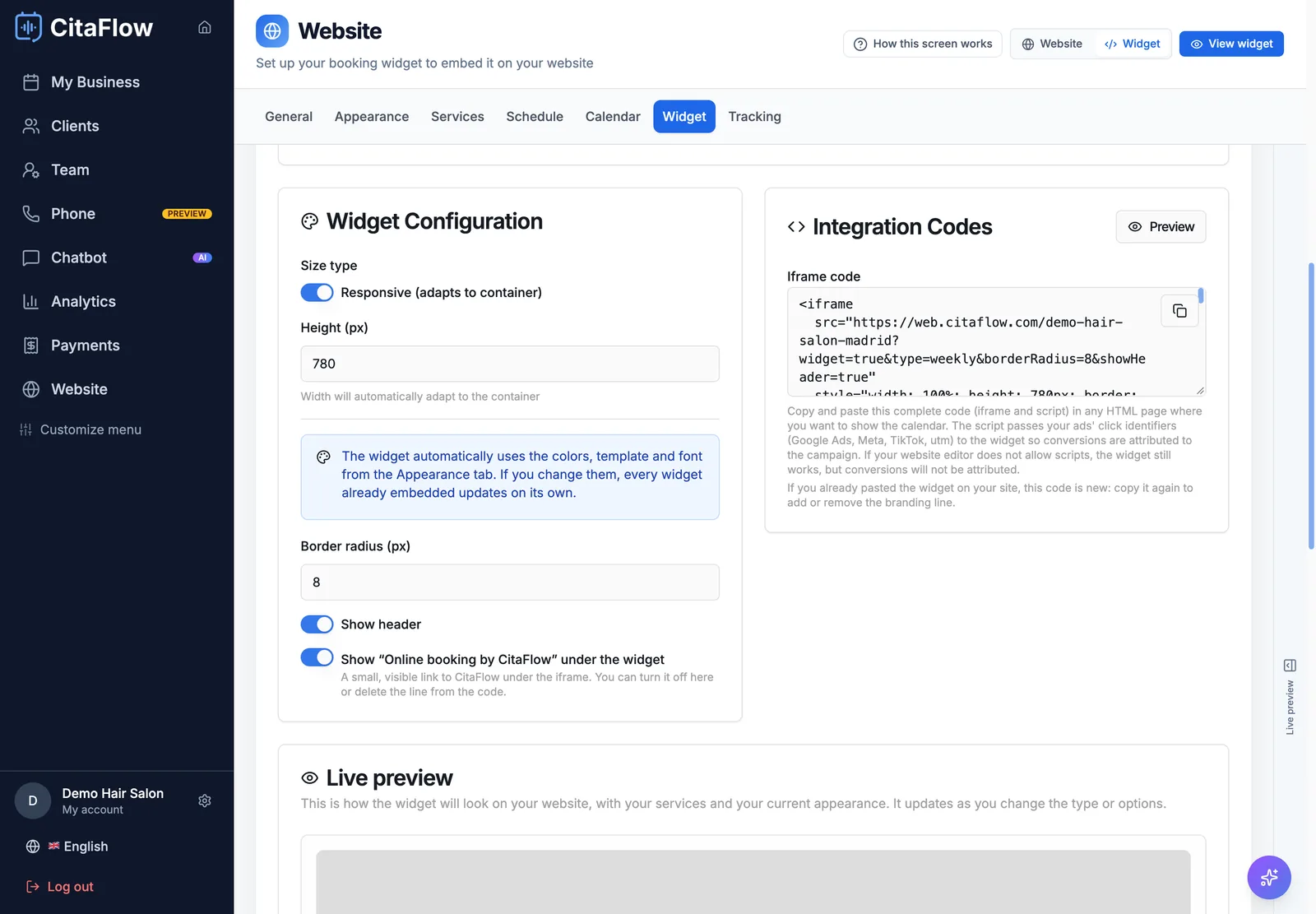
Depending on how your website is built:
- WordPress: add a Custom HTML block and paste the code inside it.
- Wix, Squarespace and similar builders: look for the element to embed HTML code and paste it there.
- Custom-built website: send the code to whoever maintains it. It’s copy and paste.
If you want the widget to work only on your website, add your domain under Allowed domains. If you leave it empty, it works anywhere.
One detail worth knowing: the widget type and size are part of the code. If you change them later, you’ll need to copy and paste it again. There’s more in the booking widget guide.
Step 7: turn on notifications for your clients
Having the appointment come in on its own is great. Having the client not forget it is even better. In My Business → Notifications you choose which messages go out automatically:
- Appointment confirmations, Changes to their appointments, Appointment reminders and Cancellations.
- Remind customer as far in advance as you like, for example 24 hours before.
- Ask for attendance confirmation, which adds a button to the WhatsApp reminder so the client can confirm they’re coming.
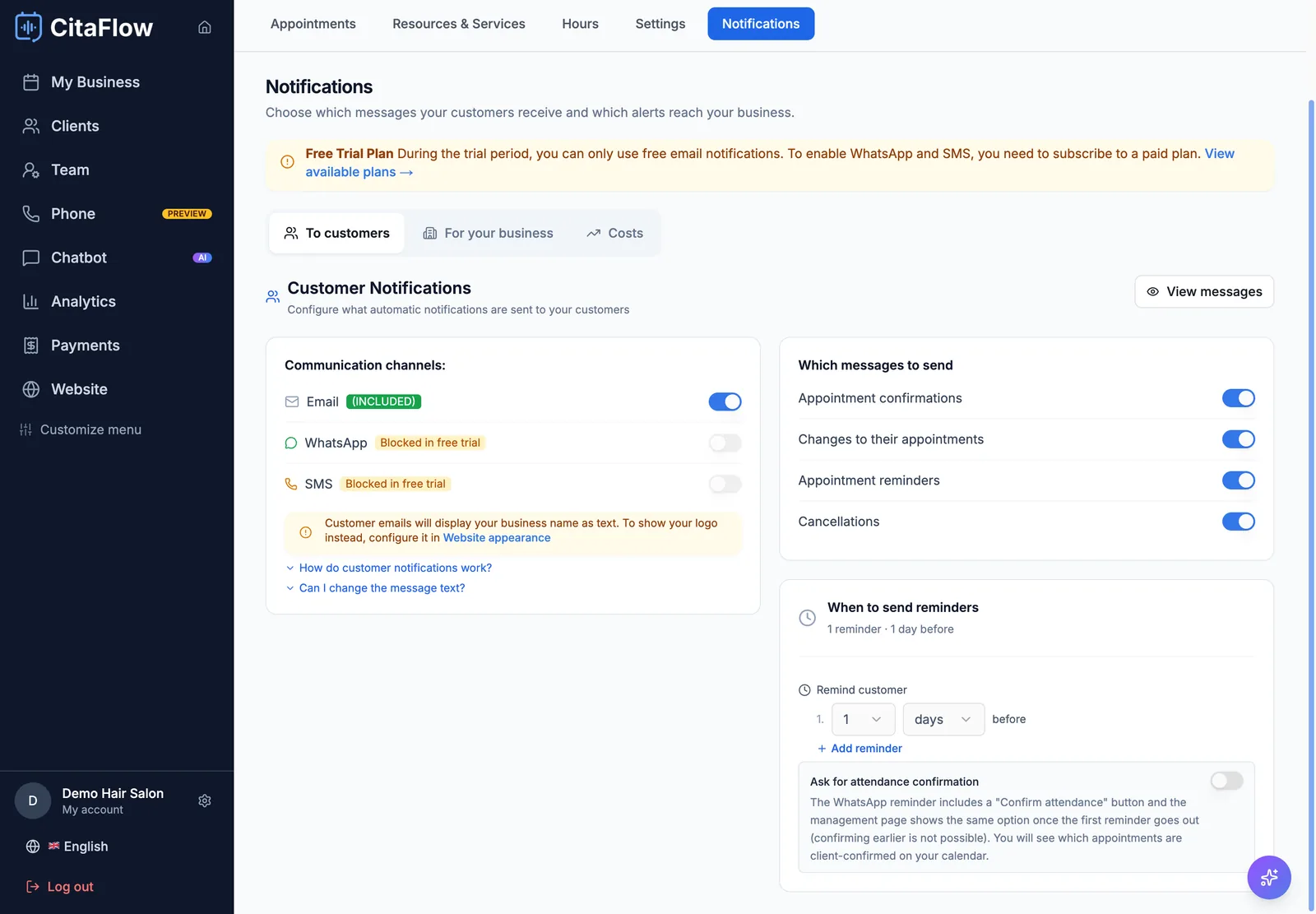
Email notifications are included. WhatsApp and SMS are switched on separately and carry an add-on fee based on your appointment volume. And don’t forget to click Save Changes: on this screen nothing applies until you save. It’s all explained in the notifications guide.
Step 8: make a test booking
Before you announce it, put yourself in your client’s shoes. Open your website on your phone, book an appointment and check three things:
- That only times when you’re really working show up.
- That the appointment appears in your dashboard calendar.
- That the confirmation arrives at the email you used to book.
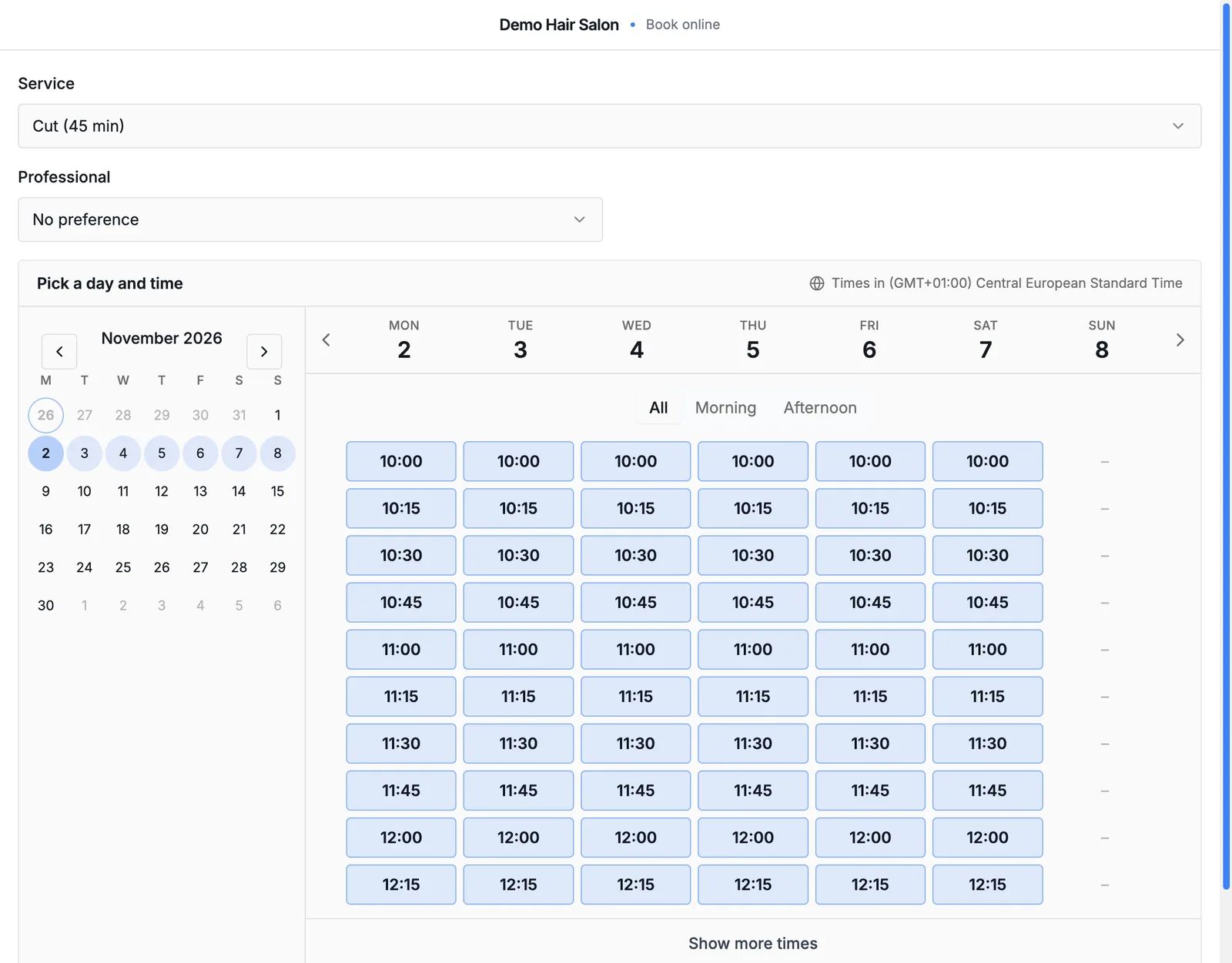
If everything checks out, cancel the test appointment from the link in the confirmation. Done: your website now takes bookings on its own.
A bonus: your booking link for Instagram, Google and WhatsApp
Your website isn’t the only place people ask you for appointments. In Website → General, under Links by channel, you’ll find your booking address in a version for each place (Google, Instagram, Facebook, TikTok, WhatsApp, email and QR). That way every booking knows where it came from.
And if you want to send someone straight to a specific service, in My Business → Resources & Services every service has the Copy booking link option, which opens the booking with that service already selected. It works really well for promoting a particular service on your social media.
Common mistakes when adding a booking system to your website
- The widget shows up empty. It’s almost always because the booking page isn’t published (step 4) or because Activate embedded widget is turned off.
- A service doesn’t appear. Check that it has Public website ticked and at least one active professional assigned.
- Times show up when you don’t work, or some are missing. Your business hours always come first, and each professional’s hours are matched against them: only the times that fit both are offered.
- You changed the widget type and your website still looks the same. The type and size live in the code: copy it and paste it again.
- You cut back your hours and there are still appointments outside them. Shortening your hours doesn’t cancel appointments already booked; you’ll have to move those yourself.
- The calendar is hidden. If people have to scroll down to the footer to book, few will. Put a clearly visible “Book now” button in the menu and on the home page.
What changes at Lucía’s salon
With the widget on her website, Lucía’s day-to-day changes in small ways that, added up, make a big difference:
- The client who used to message at eleven at night now books on her own at that hour, and Lucía finds the appointment waiting for her in the morning.
- There’s no more suggesting times one by one: each client sees what’s free and picks.
- The confirmation and the reminder go out on their own.
- If someone can’t make it, they reschedule or cancel from the link in their confirmation, and the slot frees up for someone else.
- Everything is in one calendar. And if she uses Google Calendar, it syncs both ways.
The phone will still ring now and then, and that’s fine: some clients prefer to call. If you want those calls and WhatsApp messages to turn into appointments too without putting down the scissors, CitaFlow has an AI phone receptionist and a WhatsApp chatbot that work on the same calendar. But that’s another step. Start with your website.
Frequently asked questions
Do I need to know how to code to add a booking system to my website?
No. You just copy a snippet of code from the CitaFlow dashboard and paste it into your website, the same way you’d embed a video or a map. If someone else runs your website, just send them the code.
Does it work with WordPress, Wix or a custom-built website?
Yes. The widget works on any website that lets you paste HTML code: WordPress, Wix, a custom-built site and most website builders. If yours doesn’t allow it, link to your booking page from a button.
What if I don’t have a website?
CitaFlow includes a booking page with your branding at an address like web.citaflow.com/yourbusiness, with your services, your hours and the book button. If you later want to use your own domain, you can add it as an add-on from Website → Domain.
Does CitaFlow charge a commission on each booking?
No. CitaFlow doesn’t charge a commission per booking: every appointment that comes in through your website is yours.
Can I try it before paying?
Yes. You get a 7-day free trial, no card required. That’s plenty of time to follow this guide, make your test booking and see if it’s a good fit.
Start today with your first online booking
Integrating an appointment scheduling system into your website isn’t about changing websites or learning to code. It’s about getting your hours and services right once, pasting a snippet of code and checking that it works. From then on, your website does what it always should have: book appointments while you work.
Try CitaFlow free for 7 days, no card required. And if you’d like to see how it looks first, take a look at CitaFlow online booking.